Purchasing & Landed Costs
Knowing exactly how much you paid for a product is the only way to guarantee your profit margins. The Purchasing module in EPROS handles supplier invoices, tracks what you owe distributors, and automatically calculates the "True Landed Cost" of your goods by factoring in hidden logistics expenses.
Managing Distributors (Suppliers)
Before receiving goods, ensure your supplier is registered in the system.
- Add a Distributor: Navigate to the Purchasing module and click the Supplier Ledger tab (or click the + icon next to the Supplier dropdown on the Receive tab).
- Enter Details: Provide the business name, contact person, and phone number.
- Credit Terms: Set their default credit terms (e.g., 14 days). The system will use this to automatically alert you when an invoice payment is due.
- Save: Click Save Supplier.
Receiving Stock & Calculating Landed Cost
When a delivery truck arrives, you must receive the invoice into the system to update your inventory and financial ledgers.
- Invoice Header: Open the Receive Goods tab. Select the Supplier, enter the printed Invoice Number, and verify the credit terms.
- Log Hidden Overheads: This is a crucial step for accurate profitability. Enter any extra cash you spent to get the goods onto your shelves:
- Transport: Aboboyaa or delivery truck fares.
- Loading Boys: Fees paid to carriers to offload the goods.
- Other: Market tolls or district assembly tickets.
- Add Product Lines:
- Select the product from your catalog.
- Choose the specific unit delivered (e.g., Carton).
- Enter the quantity and the exact Invoice Unit Cost.
- Click the + button to add the line.
- Review & Submit: The system will take your hidden overheads (Transport + Loading) and spread them proportionally across every item based on its value. Click Receive into stock to finalize.
Understanding Landed Cost Math (Example)
EPROS distributes overhead costs proportionally based on the total financial value of a line item, not the physical quantity.
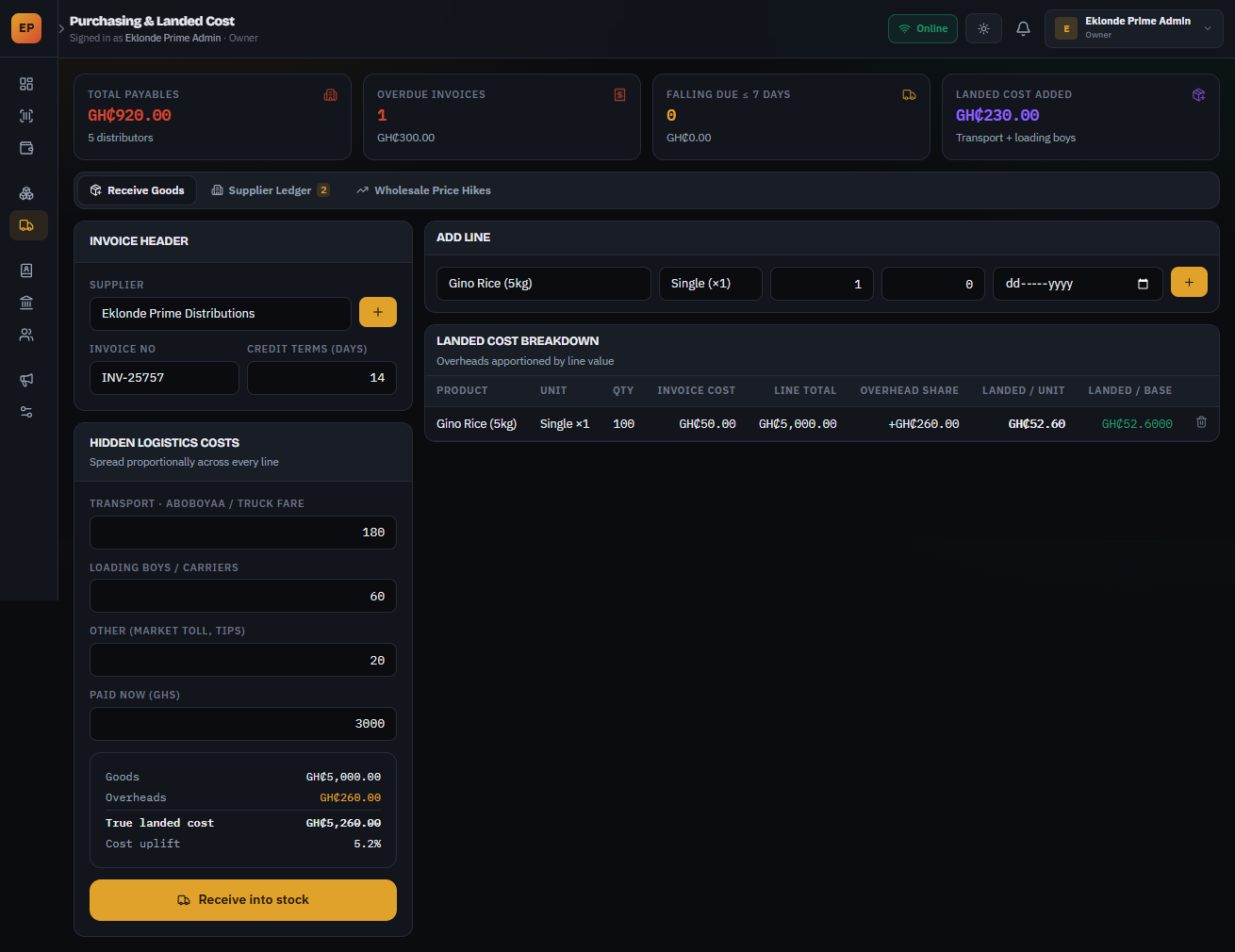
As illustrated in the dashboard above, the math breaks down as follows:
- Invoice Goods Total: 100 units of Gino Rice (5kg) at an invoice cost of GH₵50.00 each results in a Line Total of GH₵5,000.00.
- Logistics Overheads: Transport (GH₵180) + Loading Boys (GH₵60) + Other (GH₵20) equals a Total Overhead of GH₵260.00.
- Cost Uplift: The system divides the total overheads (GH₵260.00) by the total goods value (GH₵5,000.00) to determine the proportional uplift (5.2% in this scenario).
- Overhead Share: Because this specific product line accounts for 100% of the invoice's financial value, it absorbs the entire GH₵260.00 overhead charge.
- True Landed Cost: The system adds the Overhead Share to the Line Total (GH₵5,260.00), then divides by the quantity (100) to reveal a True Landed Cost of GH₵52.60 per unit.
While your supplier invoice states the cost is GH₵50.00, your actual break-even cost to get that item onto the shelf is GH₵52.60. If you price the item without accounting for this hidden logistics uplift, you bleed profit margin.
Supplier Ledger & Paying Invoices
EPROS tracks every invoice purchased on credit so you never miss a payment or overpay a distributor.
- Navigate to the Supplier Ledger tab.
- Track Due Dates: The "Supplier Invoices" table lists every delivery. Status badges are color-coded: Green (Paid), Yellow (Falling due within 3 days), and Red (Overdue).
- Record a Payment: When you hand cash or send a MoMo transfer to a supplier, find the specific invoice in the table and click Pay.
- Enter Amount: Type the exact GHS amount paid and click Record payment. The system will update the invoice status (Part-Paid or Paid) and reduce your total outstanding payable balance.
Tracking Wholesale Price Hikes
Suppliers frequently increase prices without clear notification. EPROS tracks these movements automatically.
- Open the Wholesale Price Hikes tab.
- The system reviews every delivery batch and compares the First Cost of a product against its Latest Cost.
- The Movement column calculates the exact percentage increase (in red) or decrease (in green). Use this report to identify when a supplier is quietly raising prices so you can adjust your own retail prices accordingly.